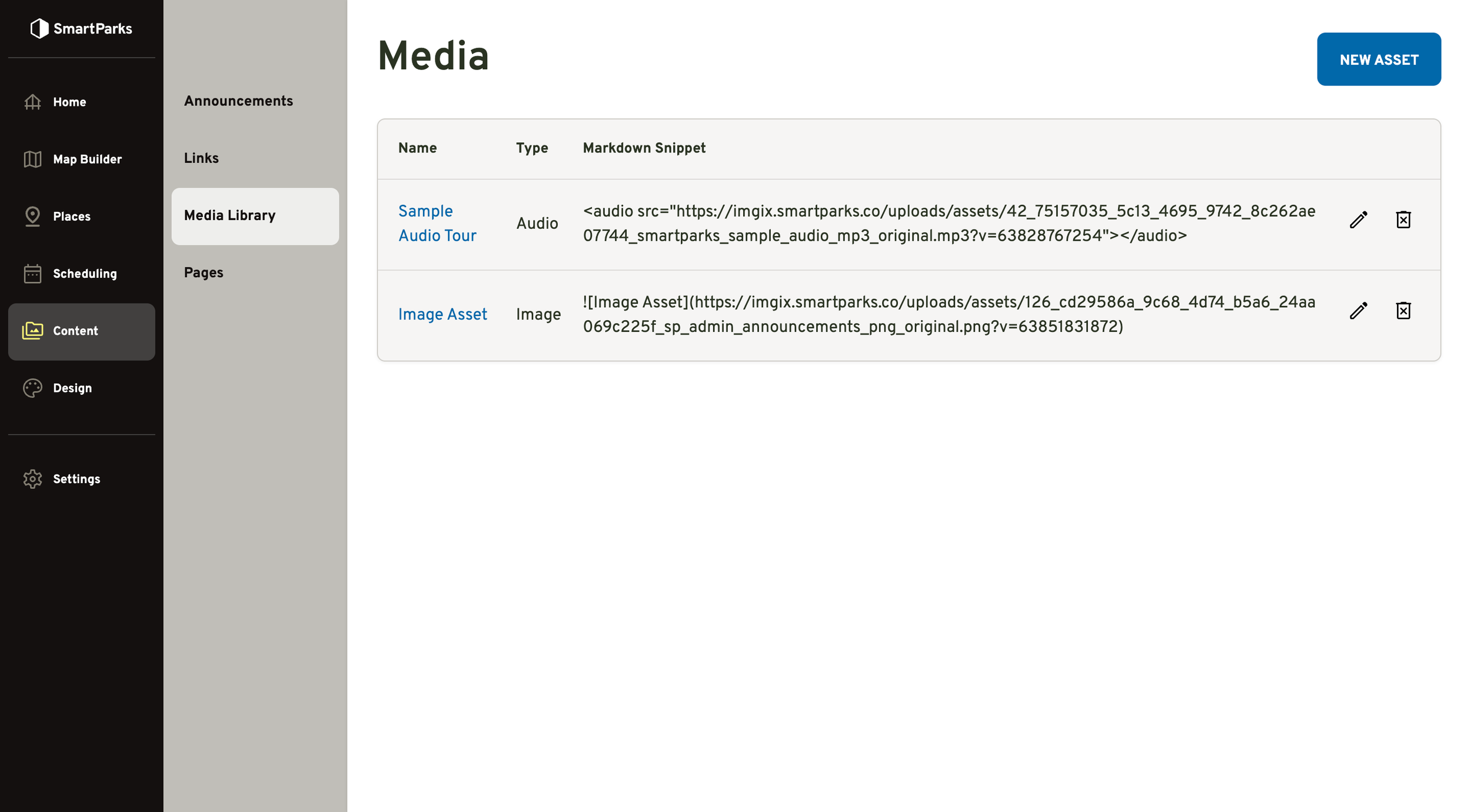
Media Library
Overview
This feature allows you to upload and store media assets (image & audio files), so they can be embedded into rich content areas throughout the app. For example, embedding an audio clip into an exhibit page.
How to Create New Media Asset
Go to Content > Media Library in the main navigation
Click the “New Asset” button in the top right
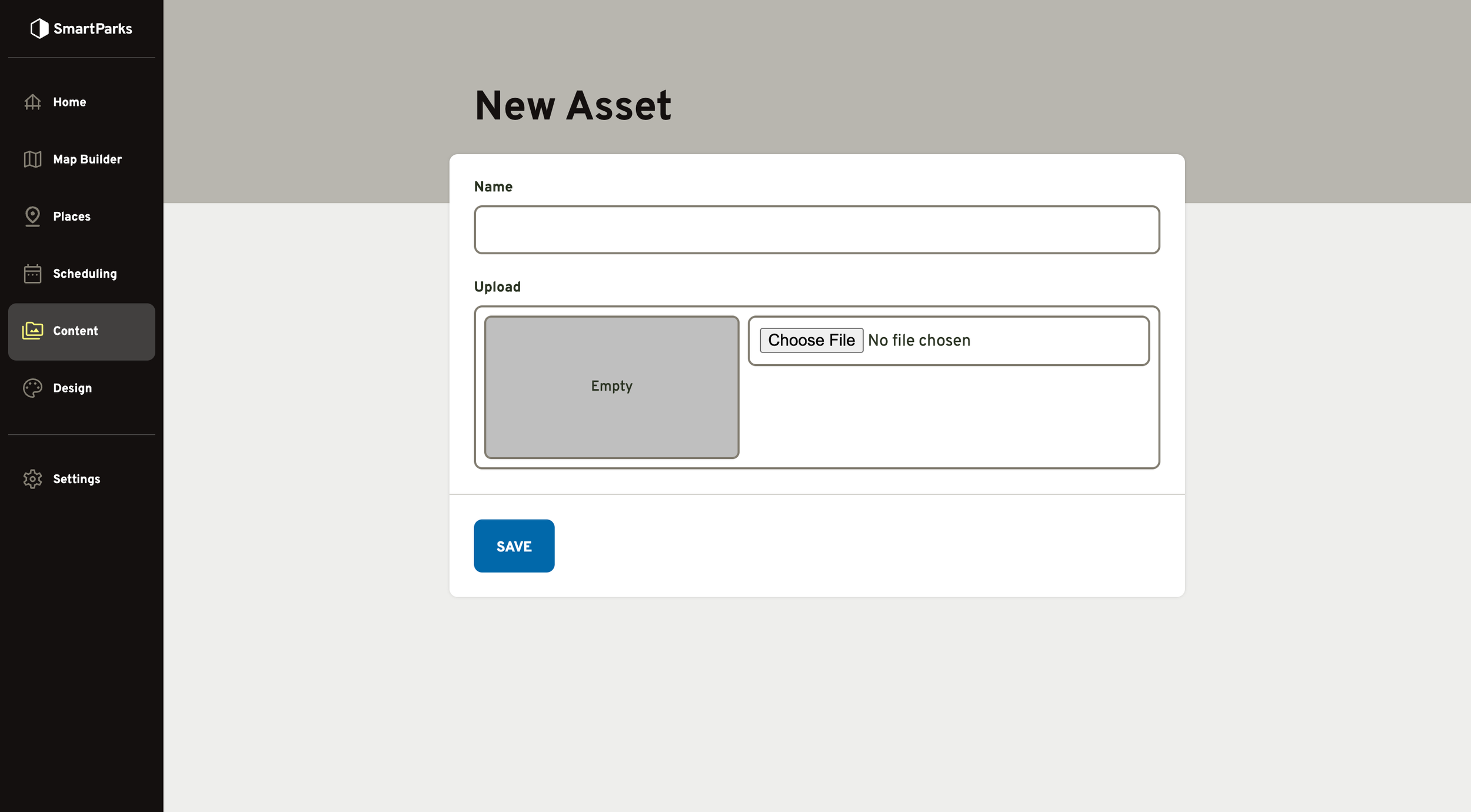
Fill out the form and click the “Save” button at the bottom
Name (required): This name is used for reference within the admin. It is not shown publicly in the mobile app.
Upload (required): Click the button to select a local file. It will be uploaded when the form is saved. Supported image formats include png, jpg, and gif. Supported audio formats include ogg and mp3.
How to Embed Media Assets
Go to Content > Media Library in the main navigation
Copy the code in the “Markdown Snippet” column next to the asset you’d like to embed
Paste this code into any of the content fields in the app that support rich content (ex. Place Descriptions)