Pages
Overview
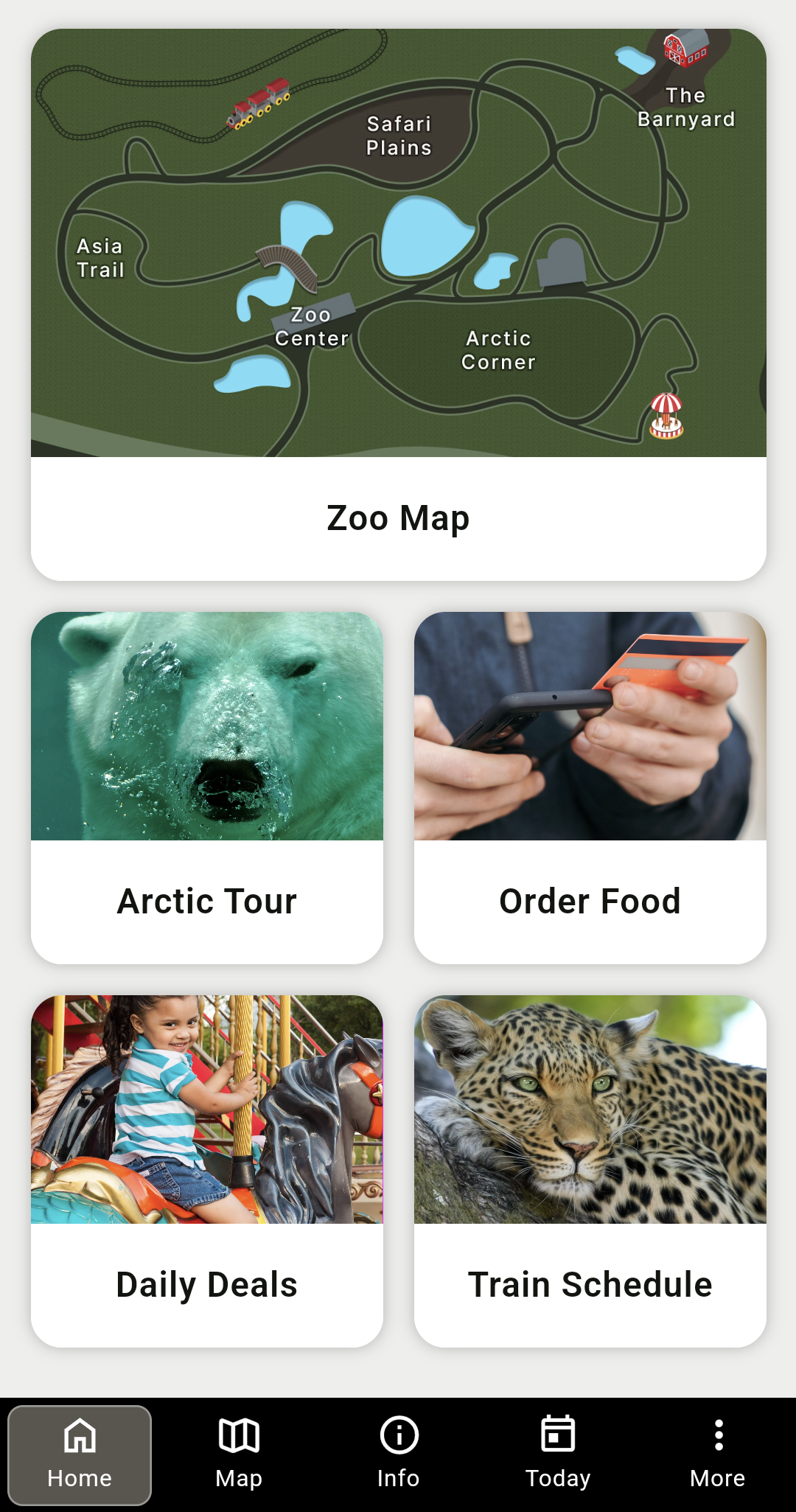
This feature allows you to create simple pages that contain a grid of linked cards. Optionally, you can set one of these pages as the mobile app’s default homepage.
How to Create a New Page
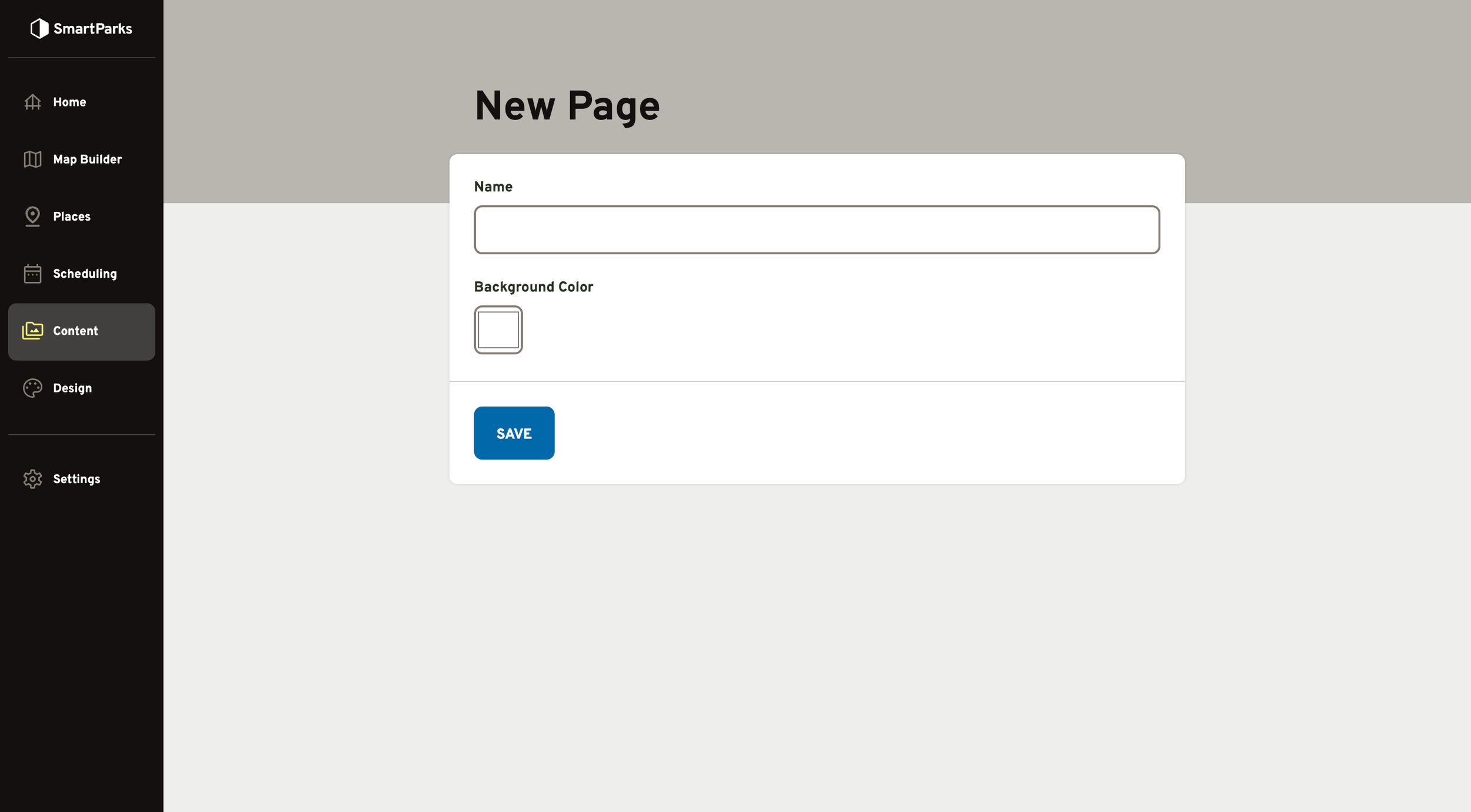
Go to Content > Pages in the left navigation menu
Click the “New Page” button in the top right
Set the name of the page and click the “Save” button
Note: You may set the background color at this time, but you will likely want to wait to add content first before setting the final background color.
After saving the form you’ll be directed to the admin detail for the page you just created. The URL near the top can be used to preview your page at any point. The page is not yet linked from the app though, so users will not have access to your new page at this point.
How to Add Links to Pages
From the pages list, click the name of the page you want to edit
Click the “Add Page Link” button at the bottom
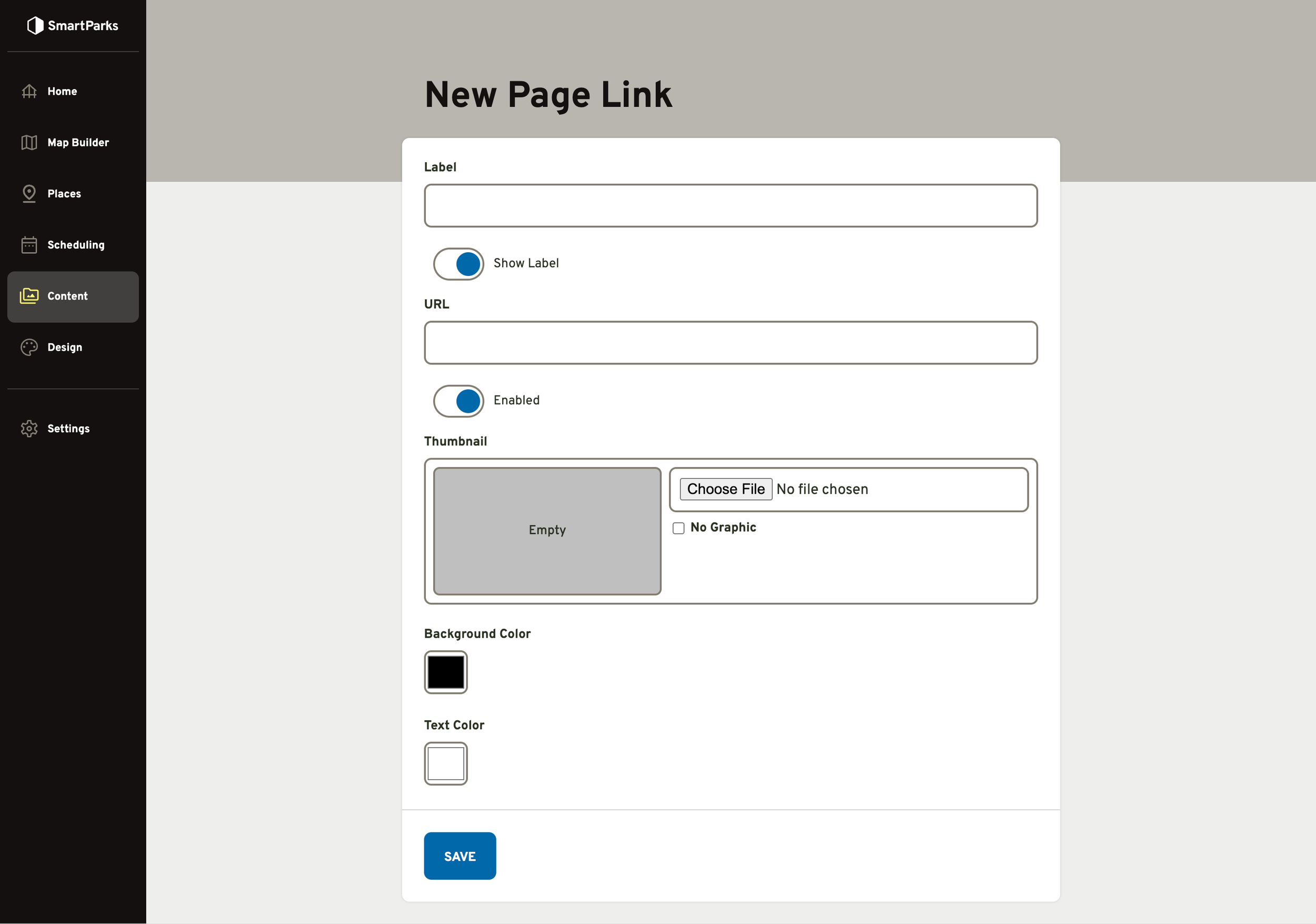
Fill out the “New Page Link” form and click the “Save” button
Label (required): This is the text that will shown on the card if “Show Label” is toggled on. If “Show Label” is toggled off, the label is still used in the markup for accessibility purposes, but will not be shown on the screen.
URL (required): This is what the card links to.
For internal links (i.e. pages within your SmartParks app), you should use a relative URL. This means, only including the part of the URL after the domain. For example, to link to a place detail page in the app, you should use /pages/123-place-name instead of map.yourzoo.org/pages/123-place-name
For external links (i.e. pages on other websites), you should use an absolute URL. This means, including the domain in the full URL. For example, to link to a page on your marketing website, you should use www.yourzoo.org/promotion-url
Enabled Toggle: This will determine if the card is actively being shown on the page. You can set up cards ahead of time before enabling them or you can disable cards you’ve already created to temporarily remove them from the page without needing to fully delete them.
Thumbnail (optional): This image will be displayed on the card. Note: You do not need to use a specific resolution or aspect ratio for the image, but in general it’s better to have a higher resolution photo (minimum 1,000 x 1,000 px) The first card on the page is larger and has a more landscape aspect ratio. The cards below that one are smaller and have a square aspect ratio.
Background Color: This will appear behind the text when the label is shown.
Text Color: This will appear on the text placed on the background color, so it should be set to a high contrast with the background color. For example, if the background is dark, you should set the text color to white or a really light shade of color.
How to Set Your Homepage
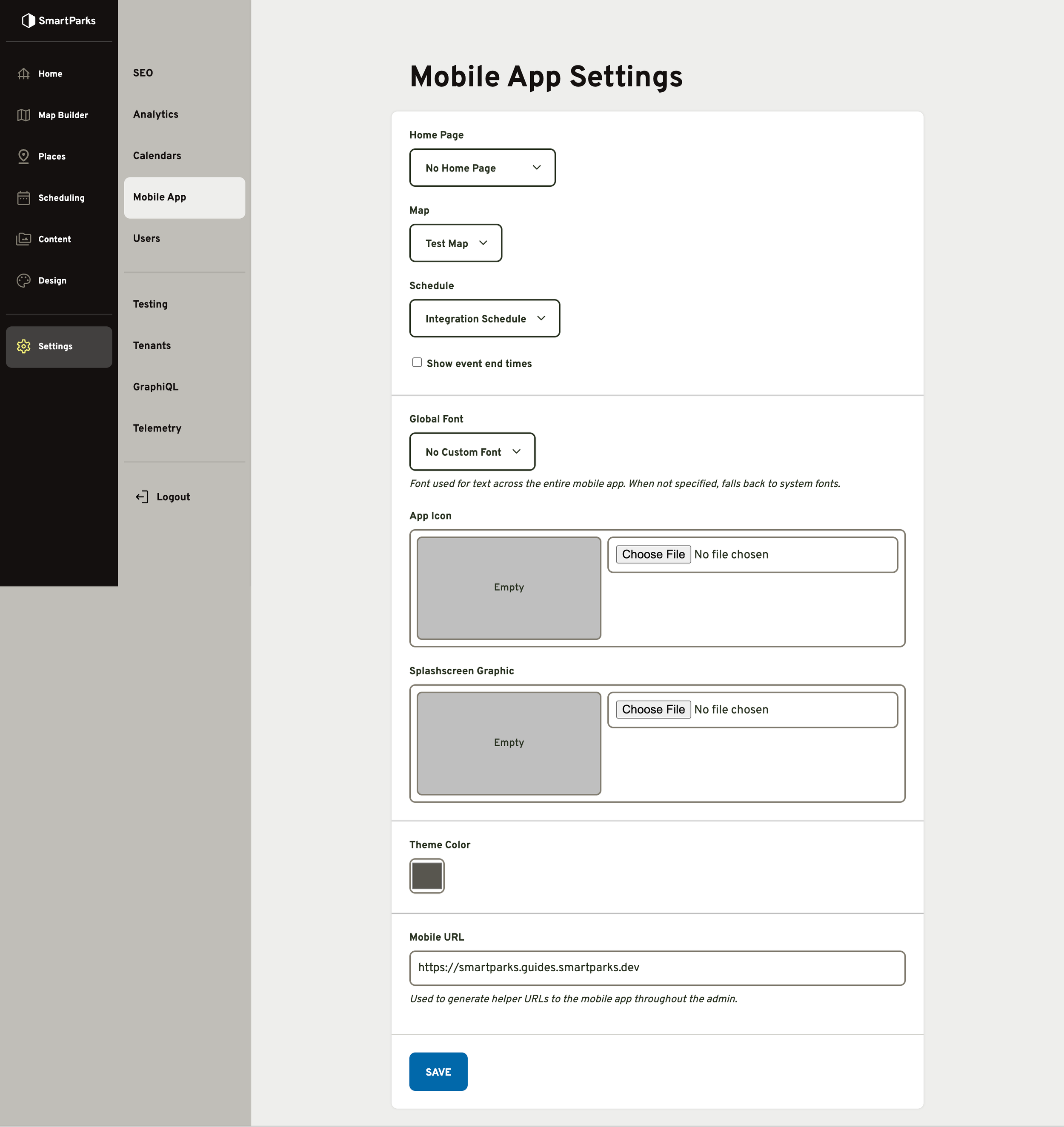
Go to Settings > Mobile App in left navigation menu
Set the “Home Page” dropdown to the desired page and click the “Save” button at the bottom
If “No Home Page” is selected, the home tab will no display in the bottom nav (of the mobile app). The map tab will be the default starting screen instead.
If a page is selected, the home tab will display in the bottom nav (of the mobile app) and will default starting screen.