Dashboard
Overview
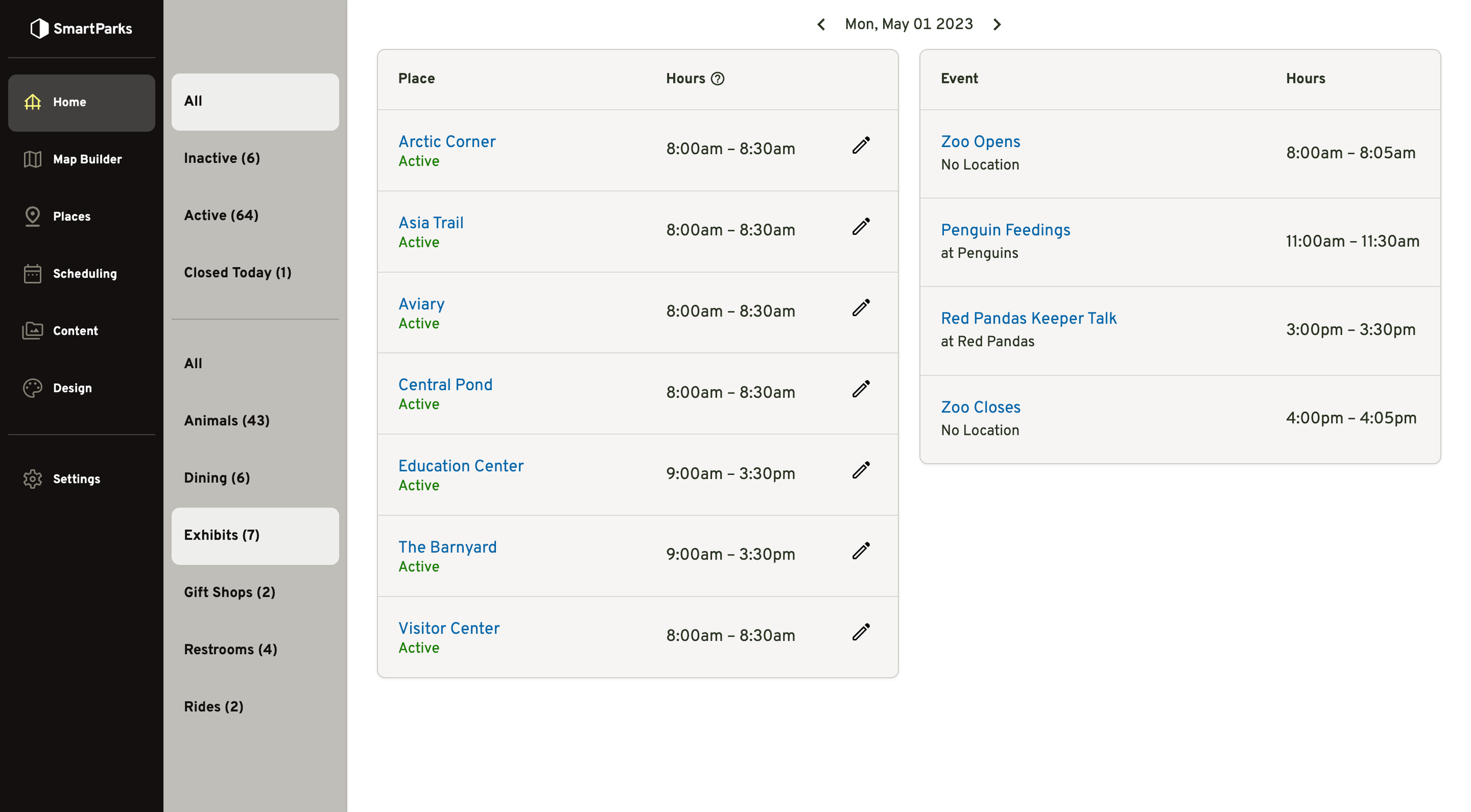
The dashboard allows you to view the status of all places and events for a specific day. From this screen, you can set status overrides for places.
- Place Filters: On the left side of the screen, you filter places by status and/or place type.
- Date Selector: At the top of the screen, you can see which day you’re currently viewing and navigated forward or backward in time using the left and right arrow icons.
- Places Index: In the middle of the screen, you can view a list of a places along with their status and hours for the selected day based on the currently set calendar.
- Events Index: On the right side of the screen, you can view a list of events with their hours for the selected day based on the currently selected calendar and schedule.
How to Set a Status Override
Status Overrides allow you to temporarily set the status of a place along with a note. They can be set to expire automatically.
- Go to Home in the main navigation
- Click the edit icon on the right side of the places table for the corresponding place
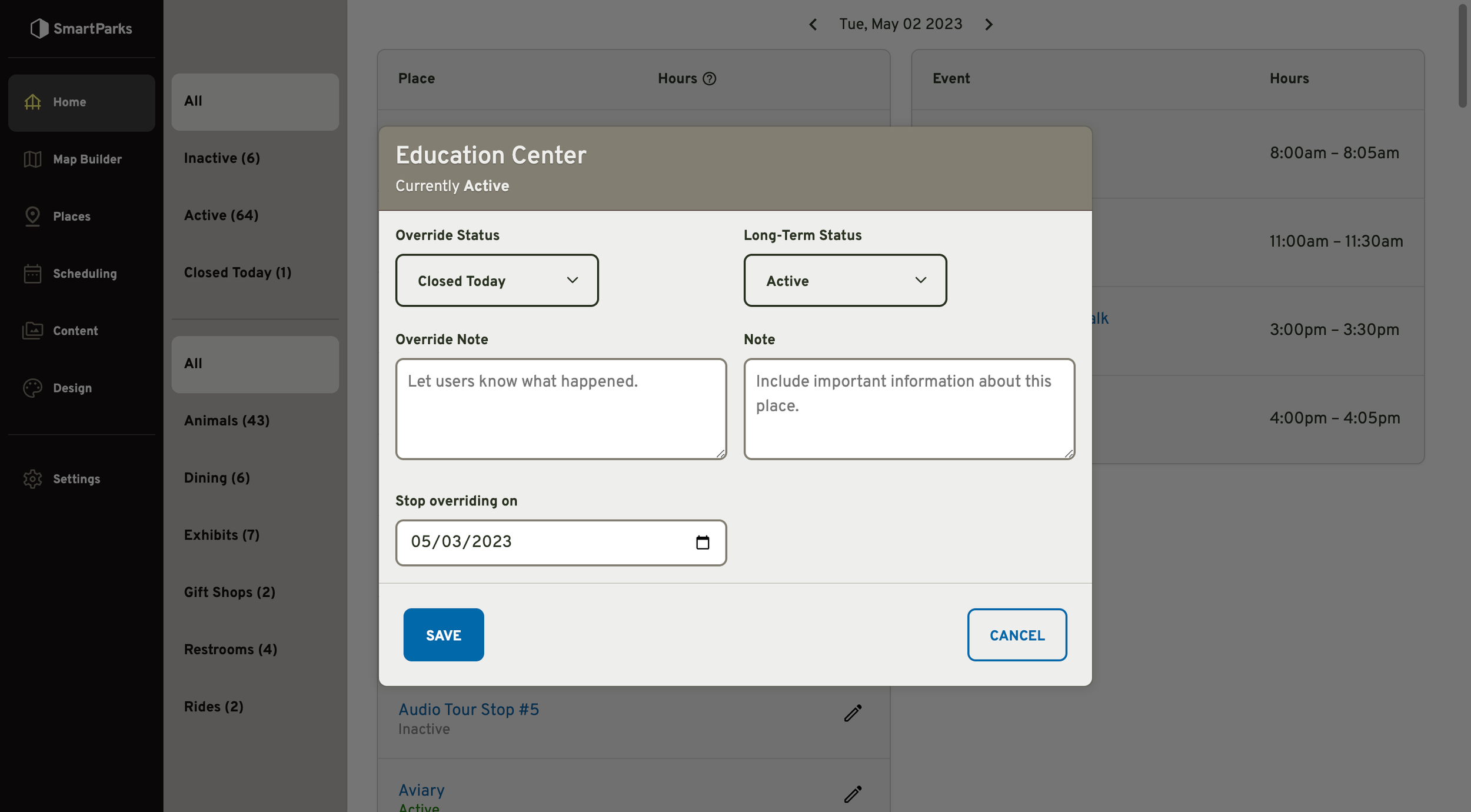
- Fill out the form and click the “Save” button
- Override Status: This is the temporary status you want to set for the place. It will often be set to a different value than the Long-Term Status. For example, if the Long-term Status is “Active”, you might need to temporarily set the status to “Closed Today”.
- Override Note: This is an optional field that will display a note to the user explaining why the status has been changed.
- Stop Overriding On: This is the date when the override status will stop displaying and the system will revert back to the long-term status. By default, it will be set to the next day, but it can be set to any date in the future. The expiration is calculated at 12:00am (i.e. midnight) Eastern Standard Time.
- Long-Term Status: This is the status that is indefinitely set on any given place.
- Note: This is the note that displays for a place unless an override note is set to replace it.
How to Stop a Status Override
There are two ways that a status override can be stopped.
- When the expiration date and time is reached.
- You can set the Status Override to “None” and click the “Save” button.